Nocturnal for Windows
The Windows desktop app is on the way. Find available installers on the Downloads page as they are released.
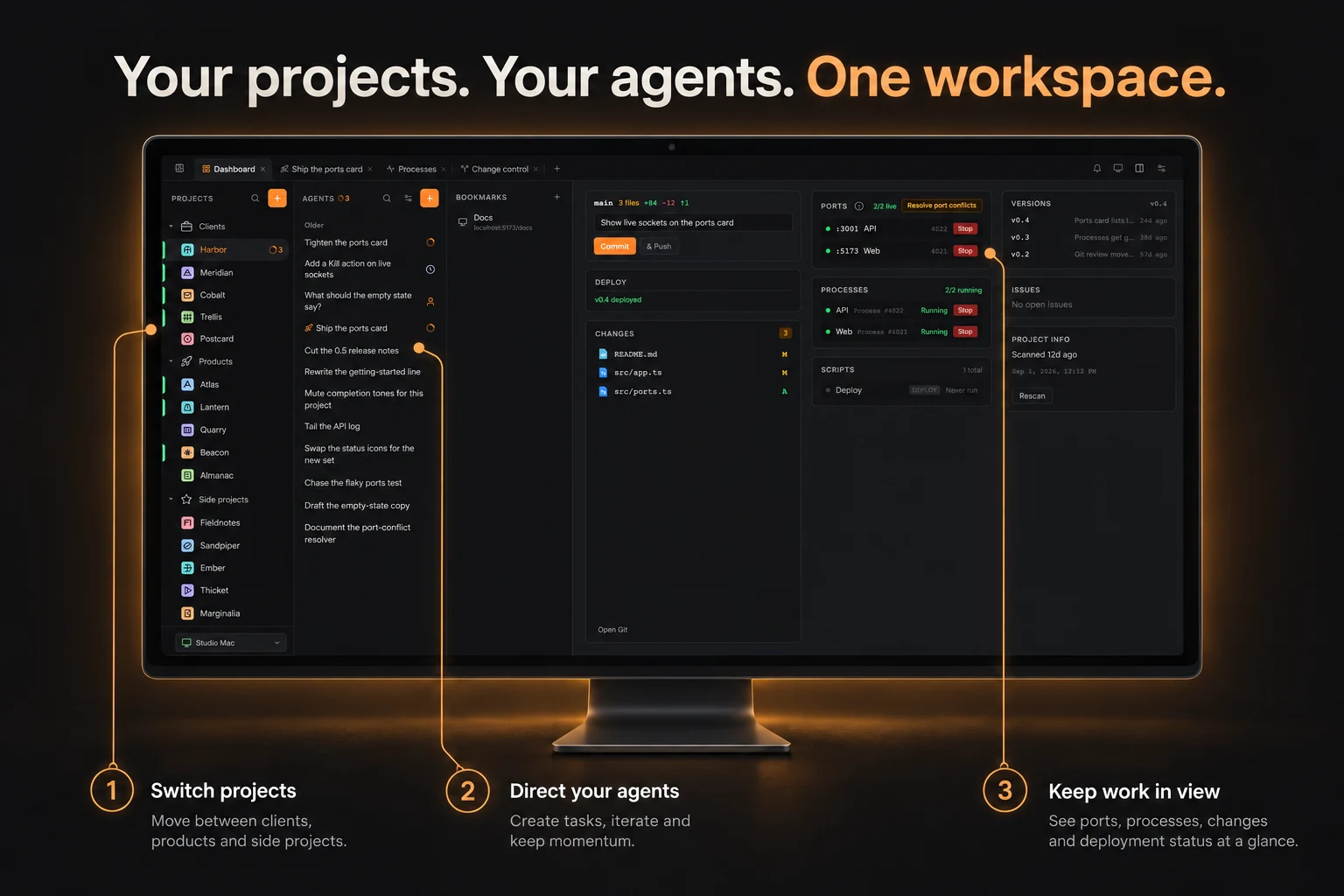
From the first agent prompt to the checks before a release. Your projects and tools, connected through one account.
Nocturnal connects your workspace through your account. Firebase keeps your settings, cloud chats, and device information available so you can continue a conversation from your phone or switch to another computer.
Sign back in after reinstalling on the same computer to restore its saved project list and layout. Invite a collaborator to a project so they can work with you through the computer that runs it.
Agents and development processes run on the selected computer, which must be awake and online for remote work. Workspace sync restores Nocturnal information; keep your repositories backed up in Git or your usual backup service.
Explore devices, sync, and recovery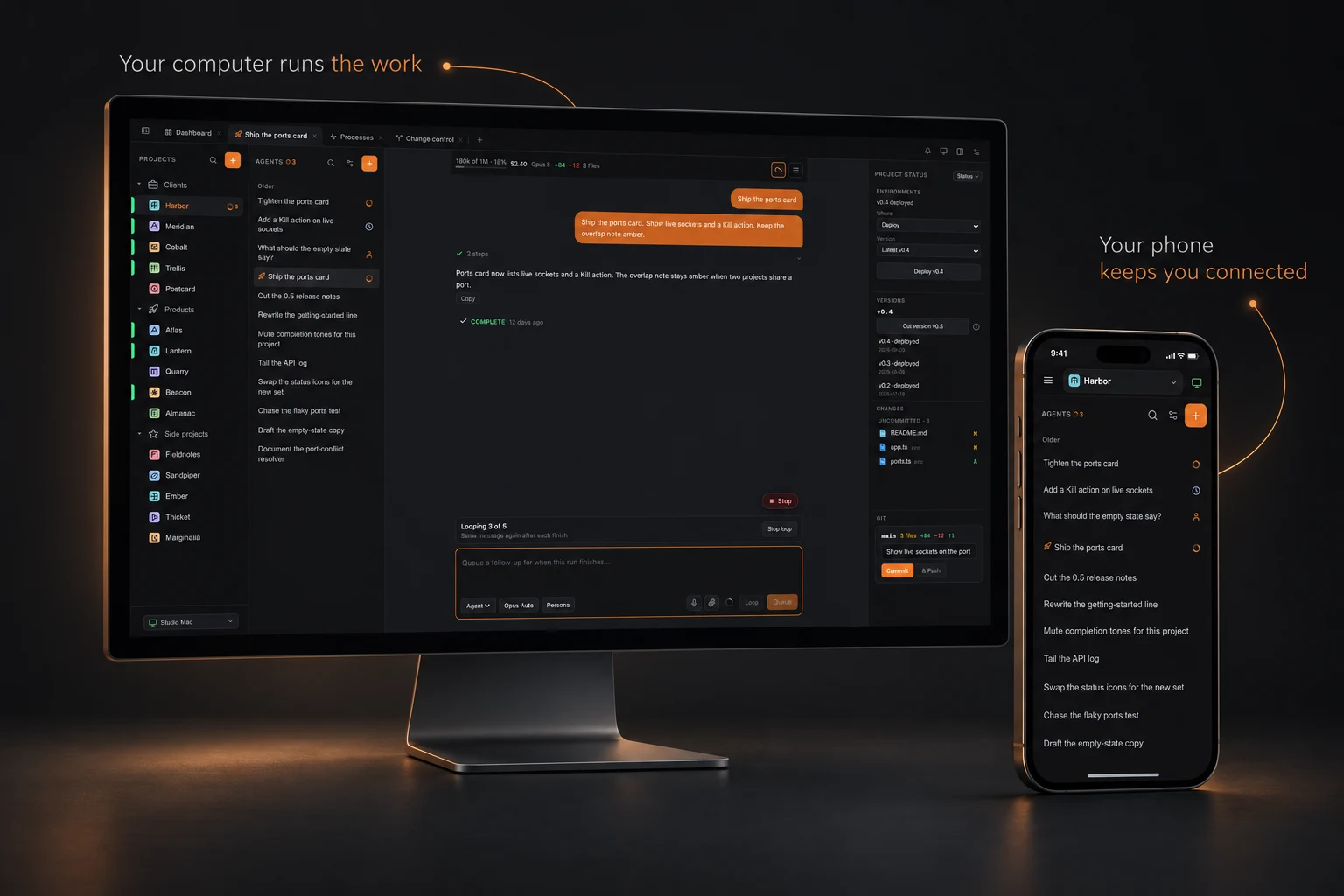
Write the instruction once and choose when it repeats. An after-finish Loop can work through the next item on a plan. A scheduled Loop can check a project every hour or prepare a morning recap.
Pick a run count or let a scheduled Loop continue until you stop it. Progress stays visible in the conversation. Questions wait for your reply, and you can cancel future repeats without interrupting the current run.
See how Loops work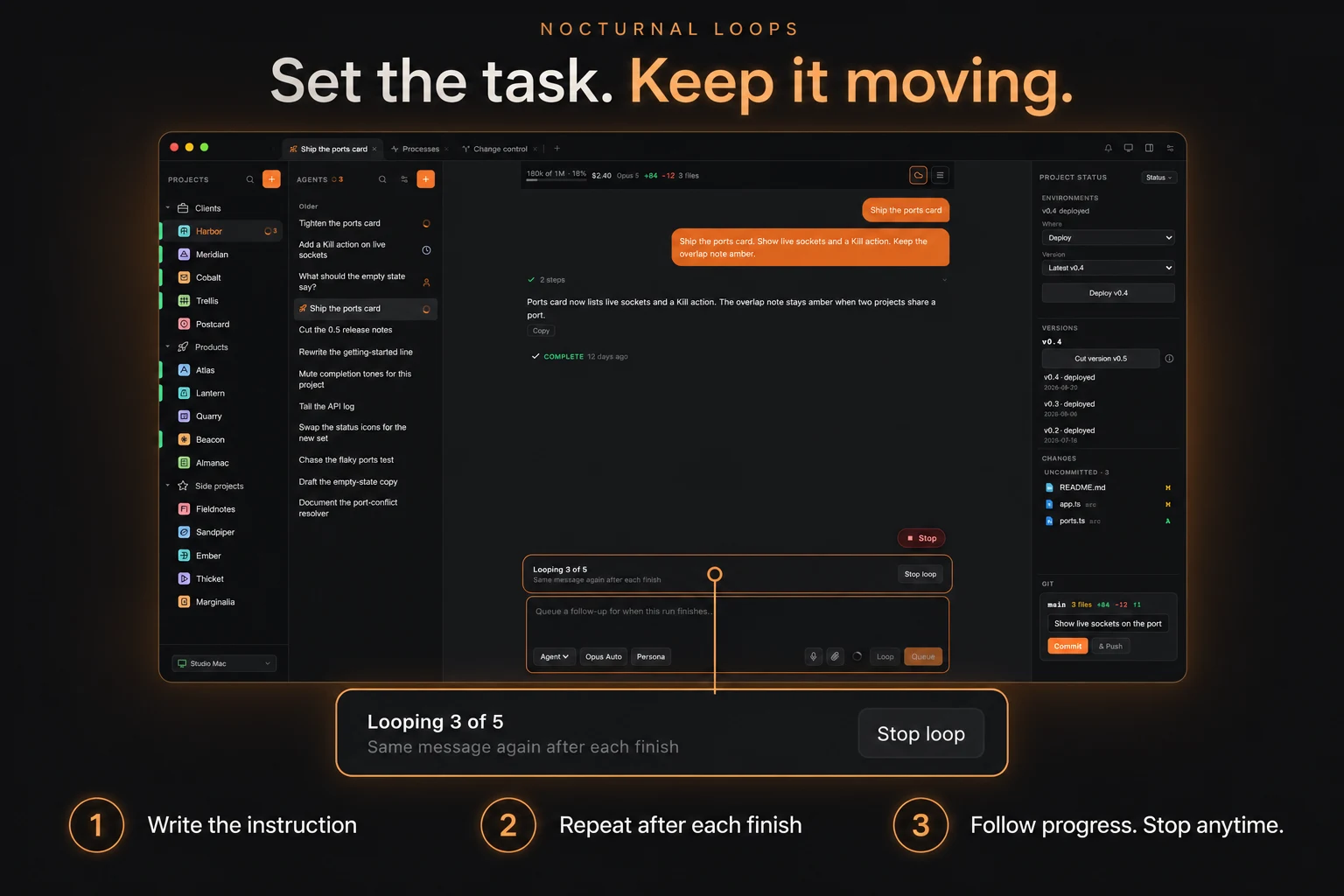
Your project dashboard shows the services you expect and whether they are listening. Open a running app directly, find a leftover server, or see when two projects want the same port.
When ports clash, Nocturnal prepares an agent prompt to remap the selected project. Review it before sending. You can also move all of a project’s services to available ports when you need a fresh allocation.
Explore port management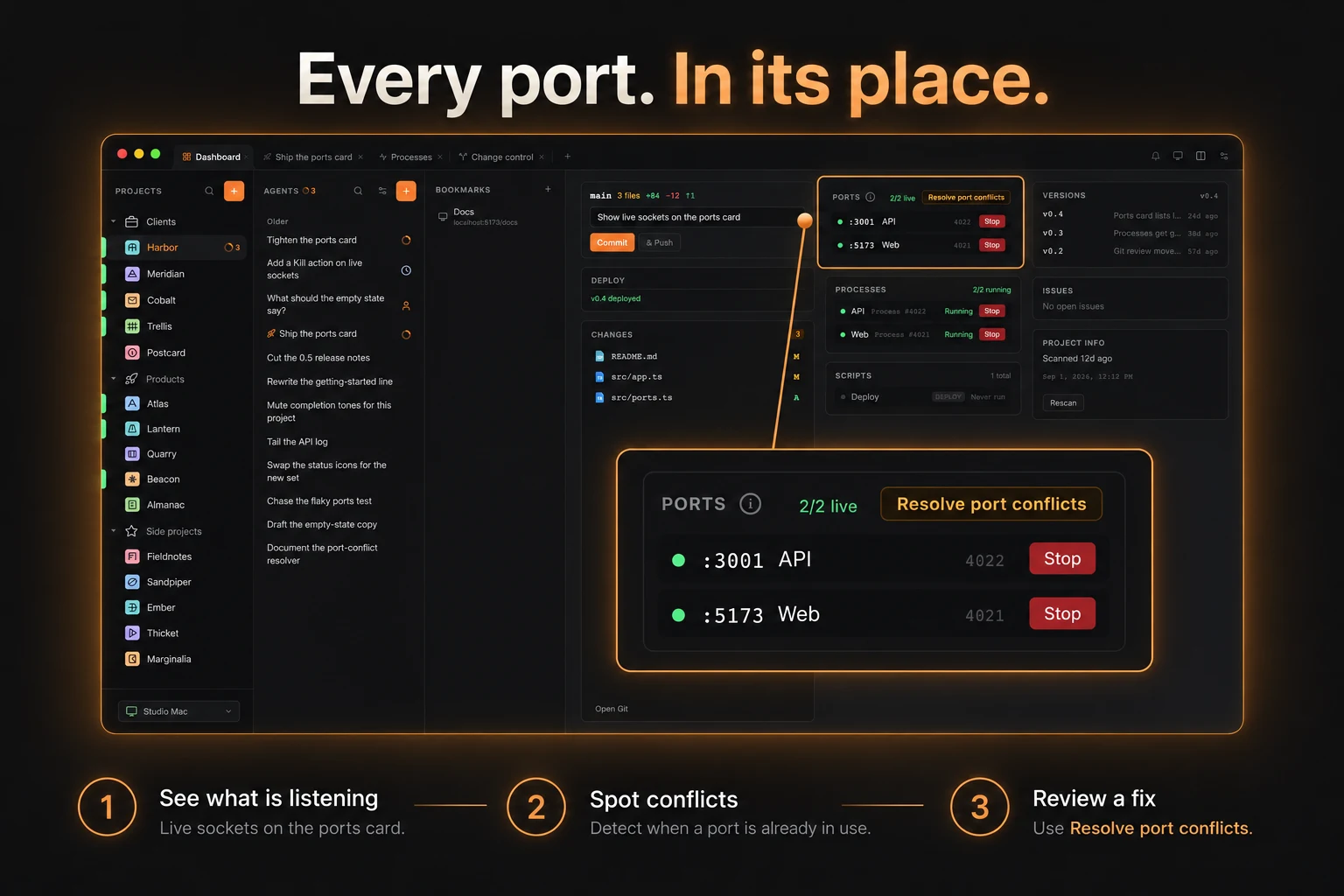
See your changed files, review a diff, commit, create a branch, push, or open a pull request. Your GitHub issues are in the same workspace: triage one and turn it into a draft prompt for an agent.
Inspect GitHub Actions runs, failed jobs, and logs in context. The deployment view brings together GitHub environments, your configured deployment scripts, and release records. Your existing GitHub workflows and hosting services remain part of that process.
Explore Git and delivery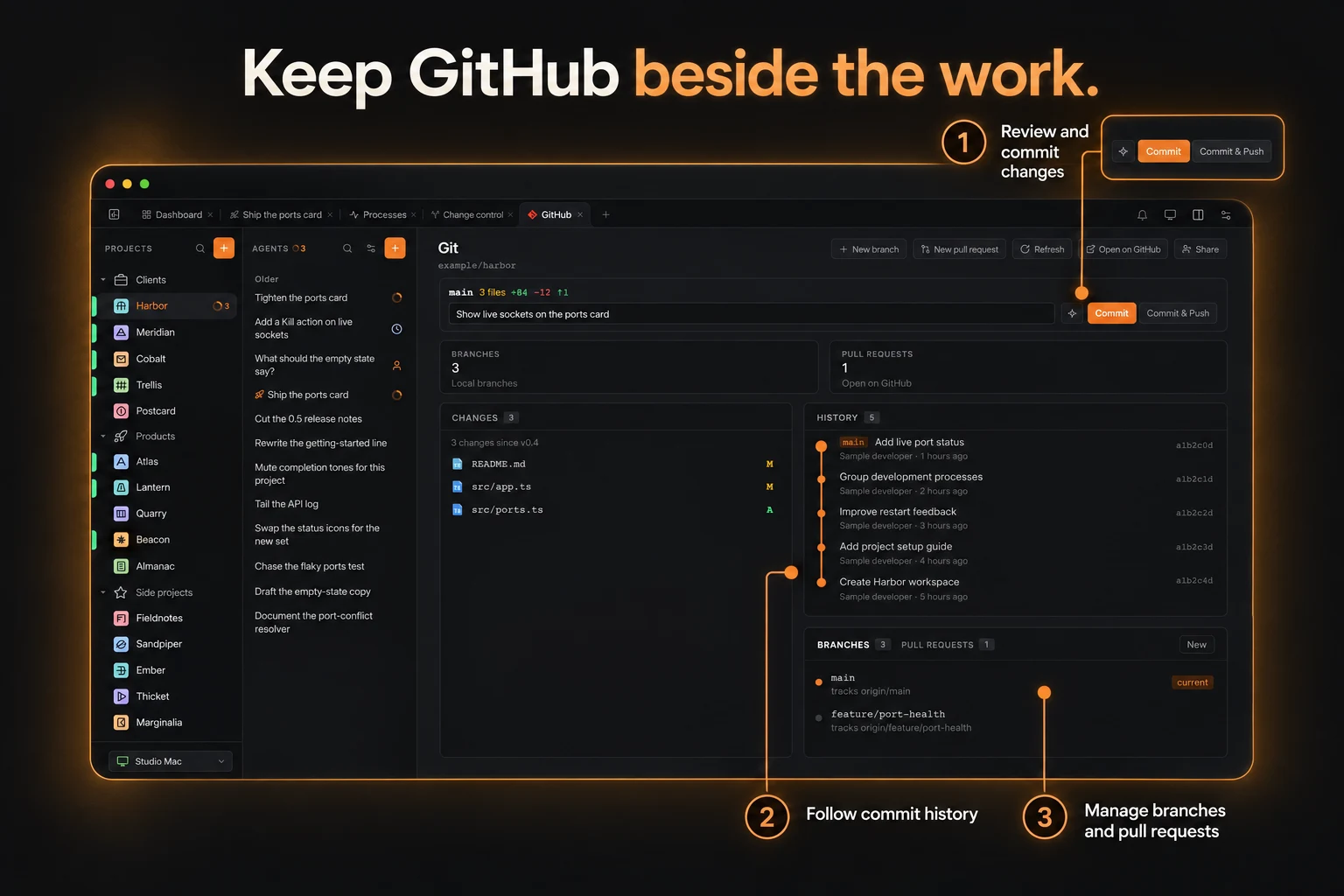
A project’s servers, emulators, and workers belong together. Start a single process or a group, see its status, and follow its live log without hunting through terminal tabs.
Processes can keep running when you close the editor. One-shot scripts such as tests, migrations, and deployments keep a run history so you can see what completed and what failed.
Explore processes and logs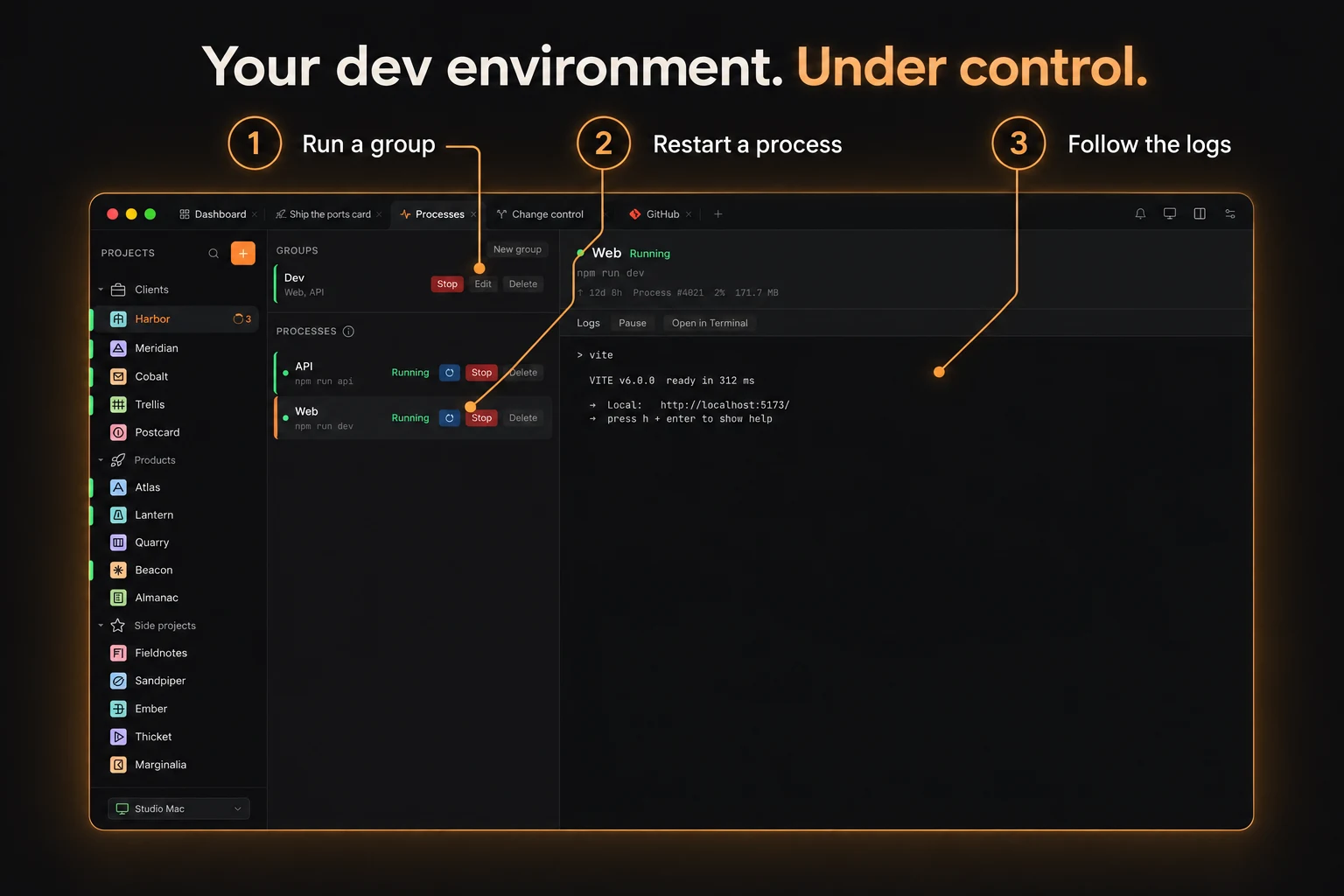
Use Ask to explore, Plan to work through an approach, and Agent to make changes. Choose an available Claude Code or Codex model for the task, then keep track of progress, context usage, and session spend.
Prompts queue per project by default. Fork a chat to explore another direction and return to the original when you are ready. Continue a cloud conversation from another device or resume the session in a terminal on the computer running it.
Build an agent workflow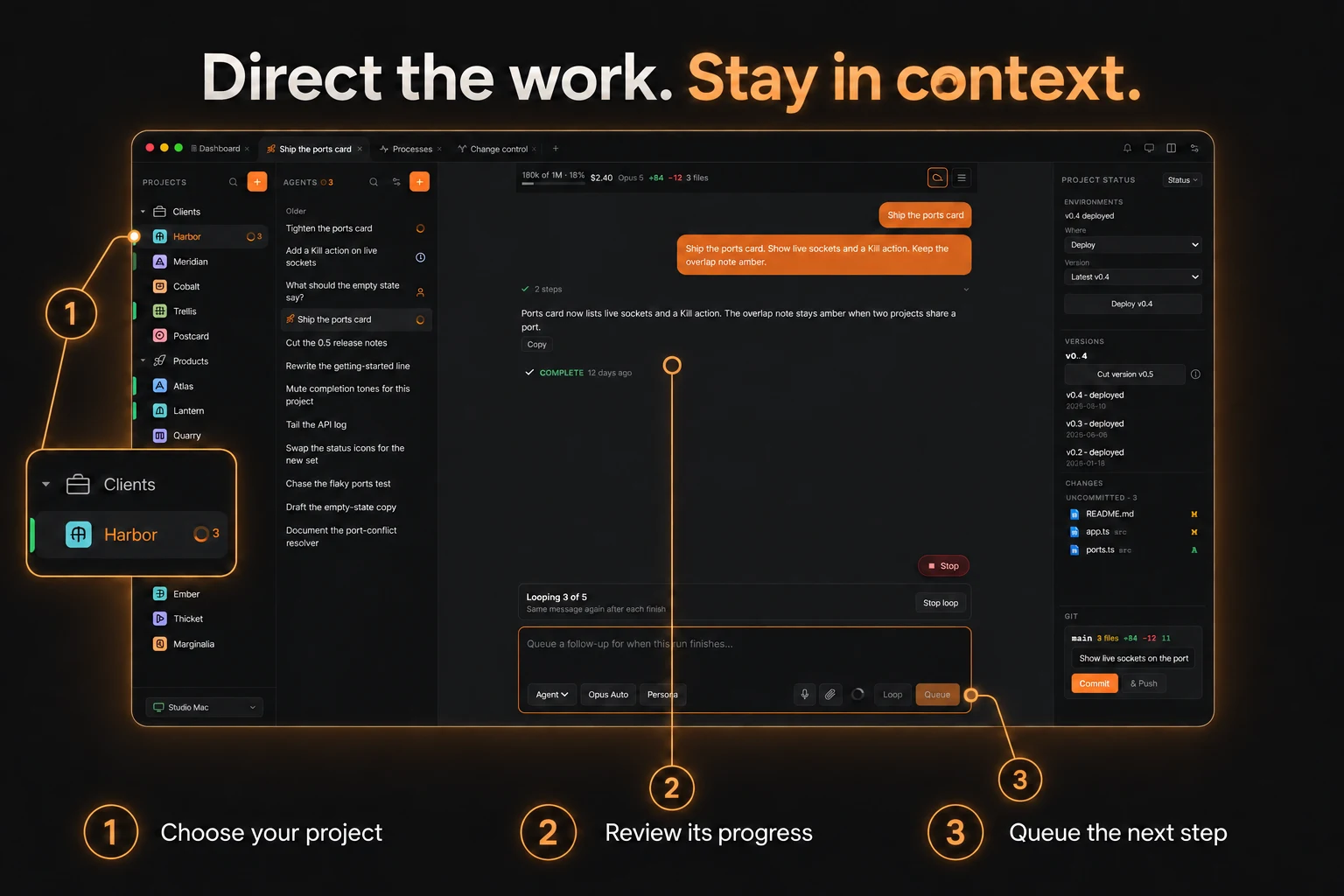
Cut a version and an agent drafts release notes from the work since your last baseline. Review and edit the result, then copy a clear summary for the people waiting for the update.
Your version history keeps those summaries alongside the project. Mark a version deployed once you have verified it is live. Release notes complement your Git commits and tags.
Explore versions and changelogs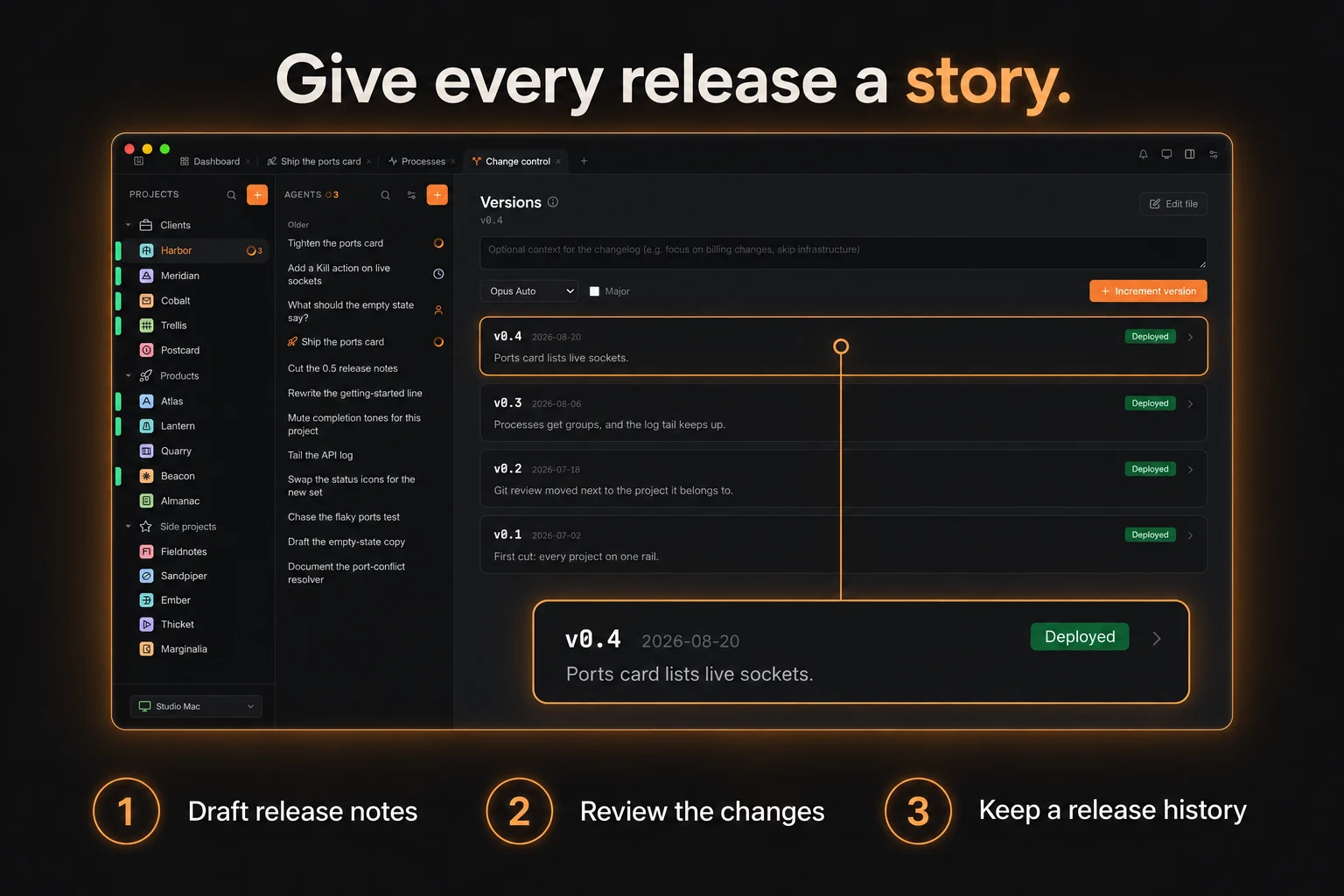
Bring an existing folder into Nocturnal or create a project from an idea. Sync project info to discover its services, scripts, and working environment.
Group projects, move between conversations, and see what needs attention. Each computer keeps its own project list while your account settings are shared across your devices.
Set up your first project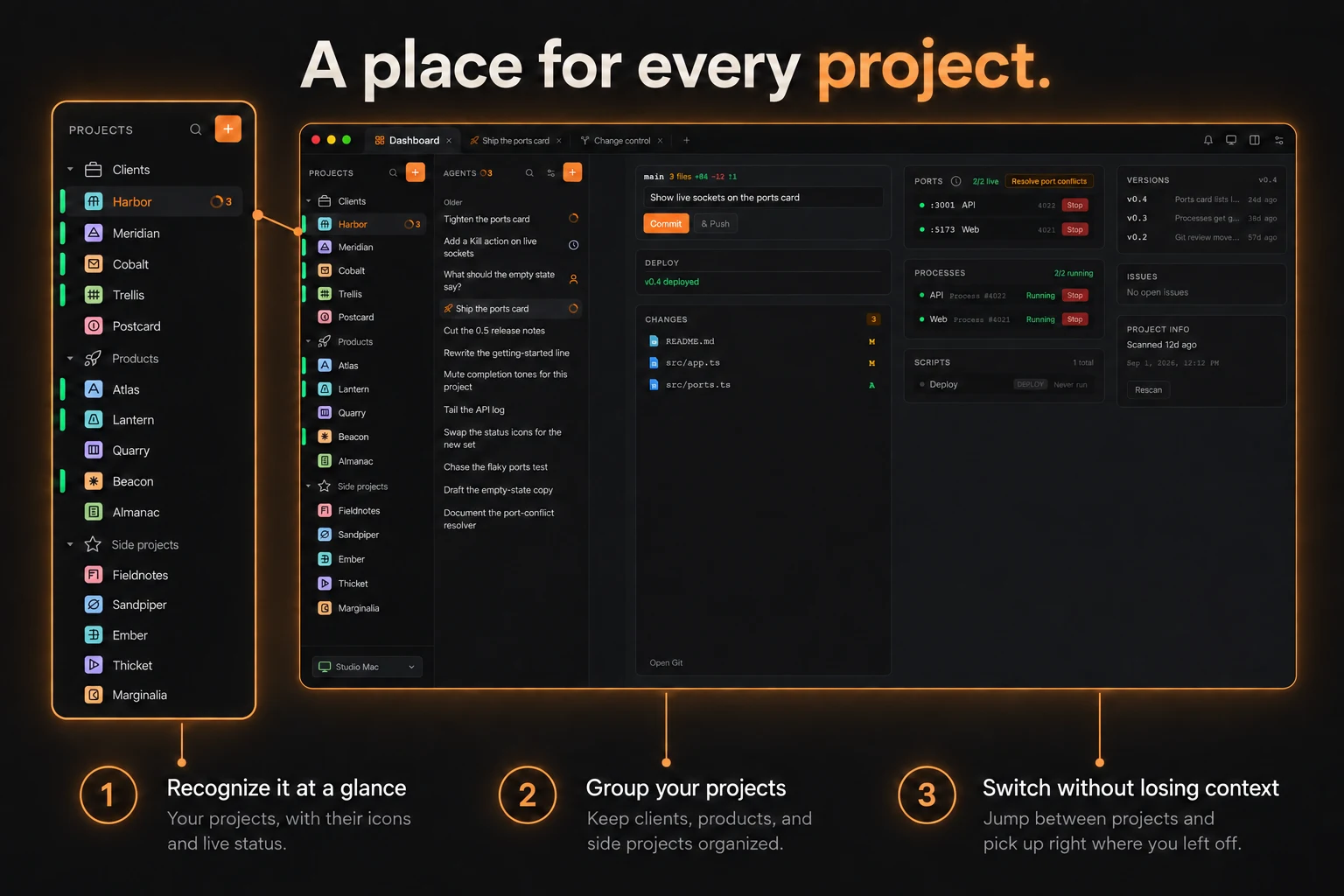
The Windows desktop app is on the way. Find available installers on the Downloads page as they are released.
The phone apps are nearing launch. They are remotes for your connected computer; you can use the web companion today.
One month free, then $5 per user per month. No credit card required.
Product updates, new releases, and mobile launch news.